Master How to Add Audio to Video in Alight Motion Easily — No More Silent Edits in 2026!

Version: Latest
Mod info: Unlocked
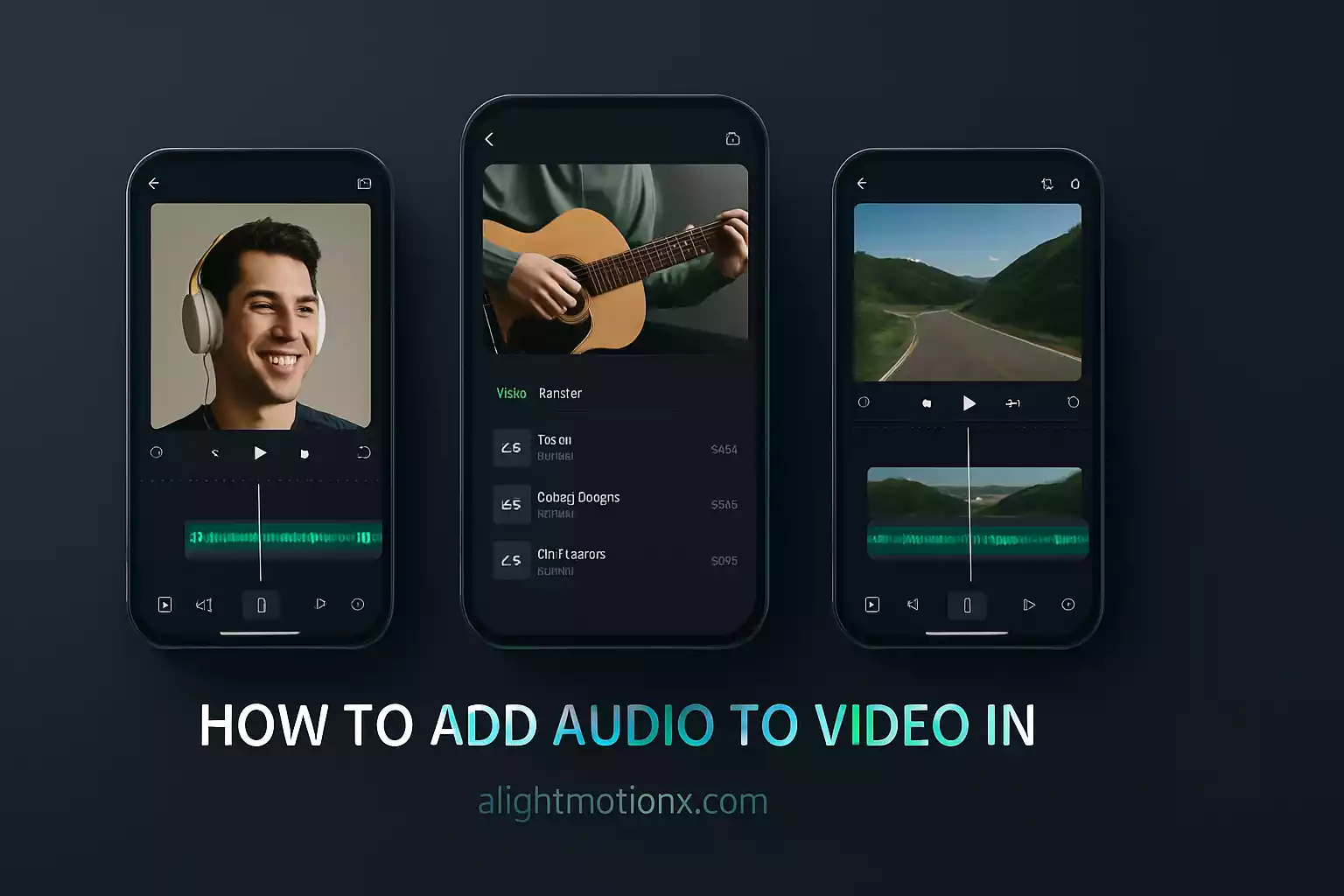
Creating a memorable video isn’t just about crisp visuals it’s about the perfect soundtrack too. In this tutorial, you’ll learn how to add audio to video in Alight Motion, plus how to extract existing soundtracks for reuse. We’ll also touch on other powerful editing tricks, like how to remove green screen in Alight Motion, so your edits look seamless and professional. Whether you’re a beginner or a seasoned editor, by the end you’ll be crafting videos that feel as good as they look.
Table of content
Why Extract & Replace Audio?
Understanding the purpose of audio manipulation helps you plan your edit:
- Eliminate Distracting Noise
- Add Brand-Consistent Music or Voiceover
- Enhance Focus on Visual Elements
- Boost Storytelling & Emotional Impact
By mastering extraction and import, you gain full creative control.
Extracting Audio from a Video
Using the “Extract Audio” Tool
- Create or open your project in Alight Motion.
- Tap Media → Select your video.
- In the timeline, tap the video layer, then Audio → Extract Audio.
- The audio appears as its own layer. You can now mute or delete the original video track if desired.
Manually Detaching the Audio Layer
- Long-press on the video layer and choose Split at the start and end points.
- Tap one of the split segments, select Audio, then Detach.
- Delete the video segment if you only need the audio.
Pro Tips for Frame-Accurate Extraction
- Zoom in on the timeline for precision.
- Use markers (long-press the ruler) to align key moments.
- Preview in slow-motion to catch timing errors.
Troubleshooting Extraction Issues
| Issue | Solution |
| Audio doesn’t detach | Update Alight Motion; clear app cache |
| Extracted audio out of sync | Adjust frame rate in project settings |
| No audio on export | Check output settings; enable audio export |
Learn from Experts to Explore Alight Motion on YouTube
Alight MotionAdding Your Own Audio Tracks
Importing Audio Files (MP3/WAV)
- Tap + (Add Layer) → Audio → Imported Audio.
- Browse your device and pick an audio file.
- Hit Import to place it on the timeline.
Trimming, Fading & Volume Control
- Trim by dragging layer handles.
- Fade In/Out: Tap layer → Keyframes → Opacity.
- Volume: Tap layer → Audio Settings → Gain.
Syncing Audio to Video Frames
- Drag the audio layer left/right to align.
- Use beat markers for music-driven edits.
- Play in loop to verify sync before final export.
Advanced Audio Editing Techniques
Multi-Track Mixing
Combine multiple tracks music, voiceover, SFX by stacking layers. Balance each with gain and mute controls.
Applying Audio Effects
Tap an audio layer → Effects → Audio:
Reverb for space
EQ to sculpt frequencies
Bass Boost for warmth
Ducking & Dynamic Levels
Use keyframes on volume to duck background music under dialogue. This ensures clear vocals without manual trimming.
Creative Looping & Stutters
Loop a catchy 2-second clip for background rhythm.
Stutter-cut: Split and repeat tiny segments for glitch effects.
Pro Tips for Professional Sound
- Choose Music by Mood: Match tempo & key to visuals.
- Maintain Consistent Levels: Reference -6 dB to avoid clipping.
- Use Markers: Plan edits around beats or dialogue peaks.
- Monitor on Headphones: Catches clicks and pops you might miss.
Common Troubleshooting
| Symptom | Fix |
| Audio fails to import | Convert to MP3 or WAV; re-launch app |
| Volume spikes or distortion | Lower Gain; apply Compressor effect |
| App crashes with large files | Split project; use smaller audio chunks |
| Mismatched audio-video lengths | Use Speed tool to stretch/shrink video layer |
Conclusion
Alight Motion isn’t just another editing app, it’s a complete creative toolkit for anyone who wants to bring their ideas to life through videos, graphics, and animations. From learning the basics like how to add text in Alight Motion to mastering advanced tricks such as adding audio, mixing soundtracks, and even working with green screen effects, the app gives you everything in one place. With its smooth controls and professional features, beginners and experts alike can transform ordinary clips into eye-catching edits. If you’re ready to create videos that not only look stunning but also feel perfectly polished, download Alight Motion today and start experimenting with your next big idea.
Frequently Asked Questions (FAQs)
Is there a built-in music library in Alight Motion?
Not yet but don’t worry you can import royalty-free tracks from online
Can I import sound effects from other apps?
Yes you can export SFX as MP3/WAV from any source and import.
Does extracting audio degrade its quality?
No Alight Motion preserves original bitrate and sample rate.
Can I convert audio-only tracks into video files?
Yes, add a blank color or image layer, then export as video.
What’s the best way to sync voiceover?
Use markers on the visual timeline and adjust keyframes frame-by-frame.
Why is my audio layer out of sync after export?
Check that project and export frame rates match (e.g., 30 fps).
How do I loop background music seamlessly?
Split at the point it naturally ends, then align the next segment’s start exactly at the playhead.