How to Use Motion Tracking in Alight Motion Feb 2026 – Step-by-Step Guide for Smooth, Pro-Level Edits

Version: 5.0.281 (Latest)
Mod info: Pro Unlocked
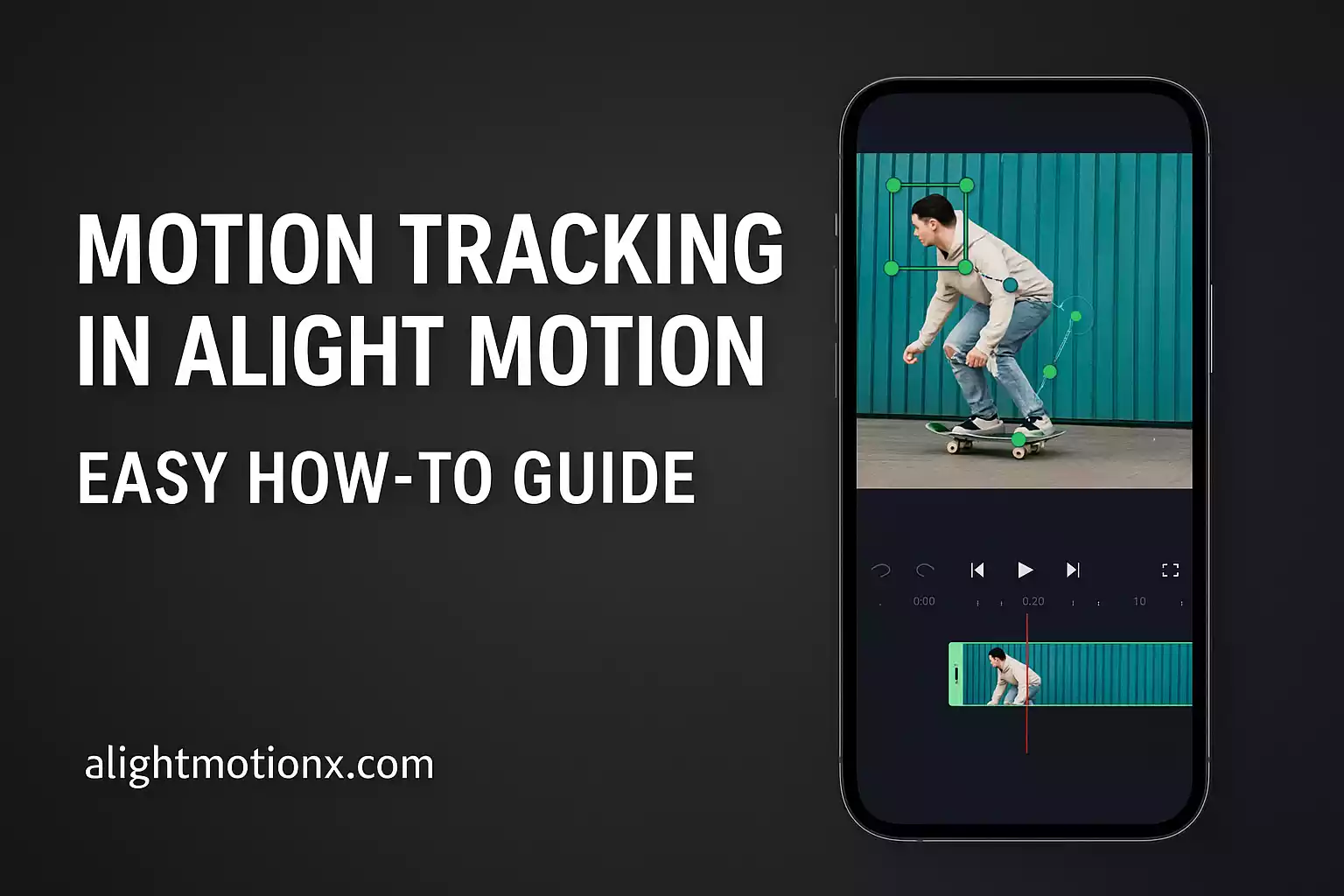
Table of content
Why Motion Tracking in Alight Motion Matters
Ever wondered how influencers make text and stickers follow their subject flawlessly? That’s Motion Tracking, a game‑changing tool in Alight Motion. Whether you’re adding pop‑up labels to a dance move or slapping a sticker on a moving object, this feature elevates your videos from basic clips to eye‑catching stories. In this 2025 guide, we’ll walk you through everything from steadying shaky footage to tracking like a pro in simple, friendly steps designed for Indian Mod APK users who want premium tools without the Pro price tag.
What Is Motion Tracking in Alight Motion?
Motion Tracking in Alight Motion lets you make any element like text, stickers, or graphics follow a moving object in your video, frame by frame. If it’s someone walking, a hand gesture, or a bouncing ball, this feature helps your effects stick to the motion naturally.
Why Motion Tracking in Alight Motion Useful:
It adds a smooth, professional feel to your videos just like you see in TikTok edits, YouTube intros, or product showcases.
Think of it like giving your text or sticker a brain it knows exactly where to move and when.
How to Fix Shaky Video in Alight Motion Before Motion Tracking
Before you start motion tracking in Alight Motion, it’s important to fix any shaky footage. A smooth video gives you better tracking results and a more professional look. Here’s how to stabilize your clip step-by-step:
Import Your Shaky Video
Open your project and tap the “+” icon to bring in the video you want to fix.
Select the Video Layer
Tap on the video layer, then go to the Effects panel at the bottom.
Apply the Stabilization Effect
In the Effects section, search for “Stabilize” and apply it to your clip.
Tweak the Settings
- Smoothness: Increase this slider to reduce camera shake.
- Auto-Crop: Turn it on to remove any black edges caused by the stabilizing effect.
Preview and Export
Play back your clip to check if it’s smooth. If it looks good, you can go ahead and export it.
👉 Now your video is ready for clean, accurate motion tracking!
How to Do Motion Tracking in Alight Motion – Full Step-by-Step Tutorial (2025)
Ready to learn how motion tracking actually works in Alight Motion? Whether you’re attaching text to a dancer or making a sticker follow your subject, here’s a simple step-by-step tutorial to help you do it manually using keyframes.
Step 1: Start a New Project
- Open the Alight Motion Mod APK and tap “New Project.”
- Set your desired frame size for example, 1080×1920 works great for Instagram Reels or TikTok.
- Import your stabilized video to begin tracking smoothly.
Step 2: Add the Element You Want to Track
- Tap the “+” icon and choose what you want to track with like Text, Image, Shape, or Sticker.
- Place the element near the object you want it to follow.
Step 3: Start Manual Motion Tracking with Keyframes
Since Alight Motion doesn’t offer auto-tracking, you’ll use keyframes to manually follow the motion.
Here’s how:
- Move the playhead to the first frame.
- Tap on your element → Select “Move & Transform” → Tap “Add Keyframe.”
- Move 5–10 frames forward, then drag the element to match the object’s new position.
- Add another keyframe.
- Repeat this process until your element follows the motion smoothly from start to finish.
Step 4: Smooth It Out with Fine-Tuning
- Easing: Tap on each keyframe and apply Easing to avoid jerky movements and make transitions smoother.
- Scale & Rotation: If needed, add subtle changes in size or angle for realism.
- Preview as You Go: Always hit play after a few keyframes to catch mistakes early and adjust.
Pro Tips for Beginners
- Zoom Into Timeline: Use pinch-to-zoom for precise keyframe placement.
- Break Into Segments: Track in 3 to 5 second chunks for better control.
- Use Layer Colors: Color-code your layers to keep things organized when tracking multiple objects.
Creative Uses of Motion Tracking in Alight Motion
Motion tracking isn’t just for labels get creative:
- Face Blur: Protect privacy by tracking and blurring faces.
- Pop‑Up Facts: Add quick stats that follow an object.
- Interactive Text: Make titles that dance with your footage.
For more ways to level up, check our guide on How to Add Text in Alight Motion and explore other premium Mod APK features.
Troubleshooting Motion Tracking in Alight Motion (Common Fixes)
| Issue | Quick Fix |
| Element not staying on target | Add more keyframes closer together to maintain accuracy. |
| Choppy or jerky animation | Apply easing to your keyframes for smooth, natural motion. |
| App lag or slow preview | Close background apps or lower the preview resolution to boost speed. |
| Black edges after stabilization | Turn on Auto-Crop in the stabilization settings to remove borders. |
Still having issues? Check out the official Alight Motion Help Center for more expert tips and community support.
Best Export Settings for Motion Tracking Videos on Alight Motion
Want your motion-tracked videos to look sharp on every platform? Use these pro export settings to keep your edits crisp, clean, and smooth with no quality loss.
| Export Setting | YouTube | Instagram Reels | TikTok |
| Resolution | 1920 × 1080 (Full HD) | 1080 × 1920 (Vertical) | 1080 × 1920 |
| Codec | H.264 | 30 fps | 60 seconds or less |
| Bitrate | 8 Mbps | MP4 (H.264) | 5 Mbps |
Keeps your video lightweight, high-quality, and TikTok-friendly.
Final Thoughts: Bring Your Edits to Life with Motion Tracking
Motion Tracking in Alight Motion isn’t just a fancy effect, it’s your secret weapon to make videos that move with purpose. With Alight Motion Mod APK, you don’t need a subscription to unlock pro-level results. Just stabilize your clip, apply smart keyframes, and watch your elements flow perfectly with every frame. The more you practice, the better your Instagram Reels and TikToks will grab attention. So dive in your next viral edit starts now!
FAQs
Can I auto-track in Alight Motion?
No, but keyframe tracking is simple and precise.
Will motion tracking work on older phones?
Yes, but performance may vary close to other apps for best speed.
How many keyframes are ideal?
Aim for one every 5–10 frames on fast movements.
Does Mod APK remove watermarks?
Yes Mod users get watermark‑free exports and unlocked tools.
Can I mix stabilization and tracking?
Absolutely stabilize first, then add your tracked elements.