Master How to Remove Green Screen in Alight Motion with Powerful Tricks for Stunning Video Edits

Version: Latest
Mod info: Unlocked
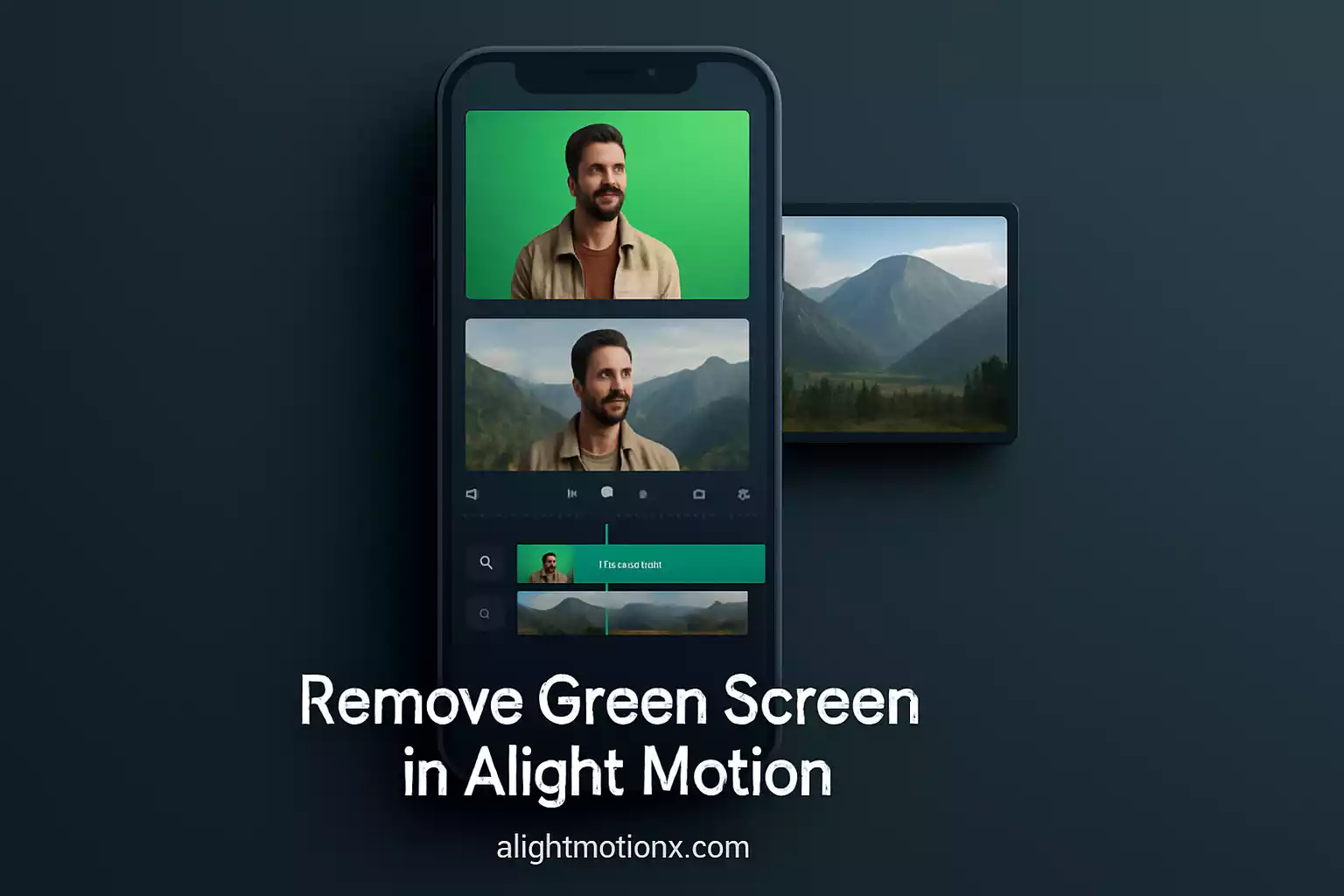
Imagine placing yourself on a tropical beach or in the heart of a busy city all from your phone. That’s the magic of Chroma Key, the green screen effect that turns simple clips into cinematic art. In this guide, we’ll walk you through how to remove green screen in Alight Motion with clear, step-by-step tips. If you’re in India, the United States, Pakistan, or anywhere else, you’ll feel like a pro VFX creator without needing a Hollywood budget. Plus, we’ll also share quick insights on how to fix Alight Motion errors so your edits stay smooth and professional.
Table of content
What Is Green Screen & Why Use It?
Green screen, also called chroma key, is a visual effects method where subjects are filmed against a plain color (usually green or blue) and later replaced with any background of choice.
Versatility – Transport yourself to new locations or settings without leaving home.
Creativity – Add animations, graphics, or effects to make your edits stand out.
Professional Touch – Turn ordinary mobile footage into cinematic-quality videos.
From YouTubers to brands, creators use green screen to produce engaging stories, product showcases, and music videos. At alightmotionx, we see it as a gateway to limitless creativity.
How Chroma Key Works (Science Behind)
At its core, Chroma Key works by isolating a single color (the “key color”) and making it transparent.
Color Range Detection: The app scans each frame for pixels within a specified hue range.
Transparency Mapping: Pixels matching the key color become see-through, revealing the layer beneath.
Edge Smoothing: Blending algorithms soften boundaries for natural edges.
Because green is less common in skin tones and clothing, it’s ideal for minimizing “spill” (color reflections) on your subject.
Preparing Your Footage for Green Screen Editing
Good results start at the shoot. Before you open Alight Motion, ensure your footage follows these best practices:
Even Lighting: Avoid shadows on the screen use soft, diffused light sources.
Distance: Keep your subject at least 3-5 feet from the screen to reduce color spill.
Solid Color: Use a wrinkle-free cloth or painted wall in pure green or blue.
High Resolution: Capture at 1080p or above for cleaner keying.
By prepping properly, you’ll spend less time fixing issues later.
How to Remove Green Screen in Alight Motion Step-by-Step
Import Your Green Screen Clip
- Open Alight Motion and tap “+” to start a new project.
- Choose your canvas size (e.g., 1080×1920 for vertical) and frame rate (24–30 fps).
- Tap Media → select your green screen clip. It appears as Layer 1.
Add & Arrange Background Layer
- Tap Media again and import your desired background (image/video).
- Drag this new layer beneath your green screen clip in the layer stack.
Apply the Chroma Key Effect
- Select the green screen layer.
- Go to Effects → Keying → Chroma Key.
- Tap the color picker and choose the green screen shade.
Adjust Key Settings for a Clean Cut
Use these sliders to perfect your key:
| Setting | Purpose | Suggested Range |
| Similarity | Amount of color to remove | 0.50–0.80 |
| Smoothness | Edge blending | 0.10–0.30 |
| Shadow/Threshold | Recover detail in dark areas | 0.05–0.20 |
| Defringe | Remove color halos around edges | 0.10–0.25 |
Fine-Tune Edges & Transparency
- Zoom in on your subject to inspect edges.
- Tweak Smoothness until outlines look natural.
- Use Mask layers (Effects → Mask) to paint-in or remove stubborn spots.
Export Your Final Video
- Tap the Export icon (top right).
- Choose format (MP4), resolution, and bitrate.
- Tap Export again and your video saves to Gallery.
Learn from Experts to Explore Alight Motion on YouTube
Alight MotionChoosing the Right Key Color (Green vs. Blue)
While green is most common, you may opt for blue if:
- Your subject wears green clothing or accessories.
- You have a bright environment that reflects green light.
Tip: Test a quick sample clip before full shooting to ensure minimal spill and easy keying.
Troubleshooting Common Green Screen Issues
- Uneven Removal: If parts of the background remain, increase Similarity slightly.
- Green Fringing: Raise Defringe to clean up halos.
- Subject Holes: Lower Shadow/Threshold to bring back details.
- Motion Blur: Shoot at higher frame rates (60 fps) or add a slight Motion Blur effect to unify edges.
Pro Tips for Mod APK Users
On the Alight Motion Mod APK, you unlock:
- Premium Effects: Use advanced blending modes and color correction filters.
- No Watermarks: Export pristine, watermark-free videos.
- Higher Resolutions: Go beyond 1080p for ultra-sharp results.
Use these to give your chroma key edits a professional polish.
Post-Keying Effects & Enhancements
Once your green screen is removed, add creativity:
- Drop Shadows & Glows: Create depth by adding subtle shadows or glow effects.
- Mask Animations: Animate masks to reveal or hide elements dynamically.
- Color Grading: Match the color tone of your foreground and background for cohesion.
These small touches transform a basic cutout into a seamless scene.
Export Settings for Social Platforms
TikTok/Reels: 9:16 aspect ratio, 1080×1920, H.264 codec.
YouTube Shorts: Same as above but aim for 60 fps for smooth motion.
Instagram Feed: 1:1 or 4:5 ratio; 1080×1080 or 1080×1350.
Always preview on your device to confirm clarity and color fidelity.
Conclusion
Removing the green screen in Alight Motion gives you the power to achieve professional-level edits directly on your phone. From understanding Chroma Key to exploring advanced Mod APK techniques, you now have everything you need to start creating.
✨ Try it now: Record a short clip, apply Chroma Key, and watch the background vanish.
🎬 Go further: Check out our detailed guide on Cinematic Transitions in Alight Motion to make your edits look seamless and cinematic.
💡 Join the community: Share your results or questions in the comments we’d love to see your creativity in action.
Happy editing, and don’t forget to visit alightmotionx.com for more tutorials and pro tips!
FAQs
Can I key out a blue screen instead of green?
Yes, just pick blue in the Chroma Key color picker. Blue works best when your subject has no blue elements.
Why do I see green edges around my subject?
Increase the Defringe slider and ensure even lighting to minimize color spill.
Does green screen removal work offline?
Absolutely. All Chroma Key processing happens on your device, no internet required.
Is Chroma Key free in Alight Motion?
The basic effect is available in the free version; Pro or Mod unlocks advanced sliders.
What’s the ideal lighting setup?
Use two soft lights at 45° angles to the screen and one fill light on your subject to avoid shadows.
Can I animate the mask around my subject?
Yes add a Mask effect, draw the path, and keyframe its shape over time.